
AI Document Automation Tools: 7 Tools to Save Time
AI document tools help businesses and individuals create, organize, analyze, and process documents with less manual work. From extracting information from invoices to summarizing lengthy reports, these tools can make everyday document tasks faster and easier.
Businesses often manage contracts, receipts, forms, reports, applications, and other paperwork. Processing these files manually can consume valuable time and increase the risk of mistakes.
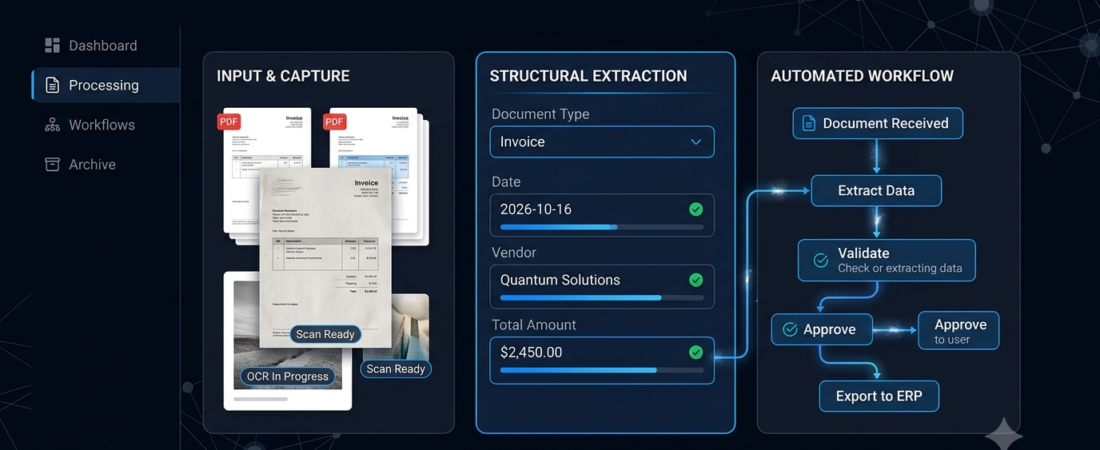
Fortunately, AI-powered document automation can help teams extract information, summarize content, classify files, and create repeatable workflows. In this guide, we compare seven tools, explain their key features, and show how to choose the right solution.
What Are AI Document Tools?
AI document tools are software applications that use artificial intelligence, optical character recognition (OCR), natural language processing, or automation to work with digital documents.
Depending on the product, they may help users:
- Extract text and structured information from files.
- Summarize long reports and PDFs.
- Classify documents by type or topic.
- Find information inside large collections of files.
- Create or edit document content.
- Route documents through automated workflows.
For example, a business could process incoming invoices, extract supplier names and totals, and send the results into an accounting workflow for review.
However, not every tool supports every document format or automation task. Always check its supported file types, integrations, accuracy, and pricing before choosing one.
7 Best AI Document Automation Tools
These tools serve different purposes, from document understanding to enterprise workflow automation. The best choice depends on whether you mainly read documents, extract data, create content, or automate a business process.
1. Adobe Acrobat AI Assistant — Understand PDFs Faster
Adobe Acrobat AI Assistant helps users interact with PDF documents and understand their contents. It can be useful when you need to locate important information or summarize a long document without reading every page manually.
Best for: Students, professionals, and teams that regularly work with PDFs.
Key benefits:
- Helps summarize supported documents.
- Answers questions about document content.
- Makes lengthy reports easier to review.
- Fits into PDF-focused workflows.
Potential limitation: Features and usage limits may depend on your plan, region, and current product offering.
2. Microsoft Power Automate — Automate Document Workflows
Microsoft Power Automate helps users build automated workflows across supported applications and services. When combined with suitable document-processing features, it can help route forms, process files, and transfer information between systems.
Best for: Businesses that use Microsoft 365 and compatible business applications.
Key benefits:
- Automates repetitive tasks.
- Connects supported applications and services.
- Can route information for approval.
- Helps reduce manual file handling.
Potential limitation: Advanced workflows may require additional licensing, configuration, or technical knowledge.
3. Google Document AI — Extract Information from Documents
Google Document AI provides document-processing capabilities designed to extract structured information from files. Businesses can use it to build workflows for supported document types, including forms and invoices.
Best for: Developers and businesses processing large volumes of structured documents.
Key benefits:
- Extracts information from supported documents.
- Supports document-processing workflows.
- Helps turn unstructured content into structured data.
- Can support integration with other systems.
Potential limitation: Setup may require technical skills, and usage-based pricing should be reviewed before processing large volumes.
4. ABBYY FineReader PDF — OCR and Document Conversion
ABBYY FineReader PDF focuses on PDF work and optical character recognition. OCR helps convert scanned pages or image-based documents into searchable text.
Best for: Offices, researchers, and professionals handling scanned paperwork.
Key benefits:
- Helps convert scans into searchable documents.
- Supports PDF editing and conversion workflows.
- Makes printed text easier to reuse.
- Helps organize information from scanned files.
Potential limitation: OCR results may require manual correction when scans are blurry, skewed, or poorly formatted.
5. Rossum — Intelligent Document Processing
Rossum specializes in intelligent document processing for business documents such as invoices and related transactional paperwork. It can help organizations capture information from incoming documents and route it into business processes.
Best for: Finance, accounts payable, and operations teams.
Key benefits:
- Supports automated data capture.
- Helps process structured business paperwork.
- Can reduce repetitive data entry.
- Supports document-processing workflows.
Potential limitation: It is a specialized business solution, so it may be unnecessary for individuals who only need basic PDF features.
6. DocuWare — Document Management and Workflow Automation
DocuWare provides document management and workflow automation capabilities for businesses. It can help teams store, retrieve, organize, and route business documents.
Best for: Businesses that want more structured digital document management.
Key benefits:
- Helps organize digital documents.
- Supports workflow automation.
- Makes document retrieval more systematic.
- Can reduce dependence on paper-based processes.
Potential limitation: Businesses should evaluate setup needs, integrations, and total cost before implementation.
7. Notion AI — Work with Notes and Internal Documents
Notion combines notes, documentation, project information, and knowledge management. Its AI capabilities can help users summarize content, draft documentation, and find useful information within supported workflows.
Best for: Small teams, creators, and businesses maintaining shared documentation.
Key benefits:
- Helps summarize and draft content.
- Keeps documentation alongside team knowledge.
- Supports collaborative workspaces.
- Can make internal information easier to work with.
Potential limitation: It is not a dedicated high-volume invoice-processing or OCR system. Choose a specialized tool if structured extraction is your main requirement.
For more related options, explore our guide to AI knowledge management tools.
AI Document Automation Tools Compared
| Tool | Main purpose | Best suited for |
|---|---|---|
| Adobe Acrobat AI Assistant | PDF understanding | PDF users and professionals |
| Microsoft Power Automate | Workflow automation | Microsoft-based businesses |
| Google Document AI | Structured data extraction | Developers and operations teams |
| ABBYY FineReader PDF | OCR and PDF conversion | Scanned documents |
| Rossum | Business document processing | Finance and operations |
| DocuWare | Document management | Businesses managing large file collections |
| Notion AI | Notes and documentation | Small teams and knowledge workers |
This is a functional comparison, not a claim that one platform is best for every task. Check each provider’s current features and terms before purchasing.
How AI Document Tools Improve Productivity
1. Automate Repetitive Data Entry
AI-powered document processing can extract fields such as dates, invoice numbers, names, and totals from supported files.
Employees can then review the extracted information instead of typing every field manually. Human verification remains important, particularly for financial or legal documents.
2. Summarize Long Documents
AI assistants can help users understand lengthy reports, research papers, and policy documents by producing summaries or answering questions about the content.
For research-heavy work, you can also explore our guide to AI research tools.
3. Build Repeatable Workflows
Workflow automation can move documents between stages, notify the right person, and request approval. For example, an incoming purchase request might be sent to a manager before the team proceeds.
Businesses interested in connecting multiple tasks can read our guide to AI automation tools.
4. Find Information More Efficiently
Searchable documents and organized knowledge bases make it easier to retrieve information. This can help teams locate previous reports, internal procedures, or customer records without manually opening every file.
How to Choose the Right AI Document Automation Tool
Before choosing a platform, identify your main task.
1. Define the document type. Decide whether you work mainly with PDFs, scanned pages, invoices, forms, contracts, or internal documentation.
2. Identify the required output. Do you need a summary, editable text, structured data, a searchable archive, or a complete automated workflow?
3. Check integrations. Confirm compatibility with your existing cloud storage, office software, CRM, accounting system, or other applications.
4. Test accuracy. Try the tool with representative documents. Check extracted numbers, names, dates, and tables carefully.
5. Compare total costs. Consider subscription fees, document limits, API usage, implementation, and additional licenses.
6. Review privacy and security. Before uploading sensitive files, examine the provider’s data-handling terms, retention settings, access controls, and available security features.
7. Keep human review where needed. Legal, financial, medical, and other high-impact documents should receive appropriate human verification.
Common Mistakes to Avoid
AI document automation works best when the workflow is designed carefully. Avoid these common mistakes:
- Assuming every file will be processed accurately: Scanned pages and complex tables can cause errors.
- Automating without testing: Run a small pilot before applying a workflow to all documents.
- Ignoring data security: Do not upload confidential documents without checking the service’s policies and permissions.
- Choosing an oversized platform: A simple PDF assistant may be enough if you do not need enterprise automation.
- Removing human review too early: Important information should be checked before it enters business records.
A small, well-tested workflow can provide more value than a complicated system that nobody maintains.
Frequently Asked Questions
What are AI document tools used for?
They can help summarize PDFs, extract information, convert scanned documents into searchable text, organize files, and automate document-related workflows.
Can AI extract data from invoices?
Yes. Specialized document-processing tools can extract fields from supported invoices. Accuracy varies with document quality, layout, and configuration, so important data should be verified.
Are AI document automation tools free?
Some tools offer free features or trials, while others charge subscriptions or usage-based fees. Enterprise document-processing platforms may have additional implementation costs.
Which AI document tool is best for small businesses?
The answer depends on the task. A small team working mainly with PDFs may prefer a PDF assistant, while a team processing invoices or routing approvals may need a dedicated document-processing or workflow platform.
Is it safe to upload confidential documents to AI tools?
Safety depends on the provider, account settings, and type of document. Review data policies, access permissions, and retention options first. Avoid uploading sensitive information to services that have not been approved for your use case.
Conclusion
AI document tools can help individuals and businesses spend less time handling paperwork and more time on meaningful work. PDF assistants are useful for understanding documents, OCR tools help digitize scans, and specialized document-processing platforms can extract structured business information.
Start by identifying your most repetitive document task. Test a suitable tool on a small sample, verify the results, and expand the workflow only when it proves reliable.
For more practical guides on business software, productivity, and automation, explore Aiventa Guide.