Best AI Flowchart Generators: 6 Tools to Visualize Workflows
Best AI Flowchart Generators can help you turn written ideas, business processes, and complicated steps into visual diagrams. Instead of manually drawing every shape and connecting every arrow, you can describe a process and let an AI-powered tool create a starting diagram.
Whether you are a student explaining a concept, a developer documenting software logic, or a business owner organizing a workflow, the right tool can make your information easier to understand.
However, not every AI diagram tool offers the same features. Some focus on business process mapping, while others are better for quick visuals, collaboration, or presentations.
In this guide, we compare six AI flowchart generators, explain their strengths, and help you choose one for your needs.
What Is an AI Flowchart Generator?
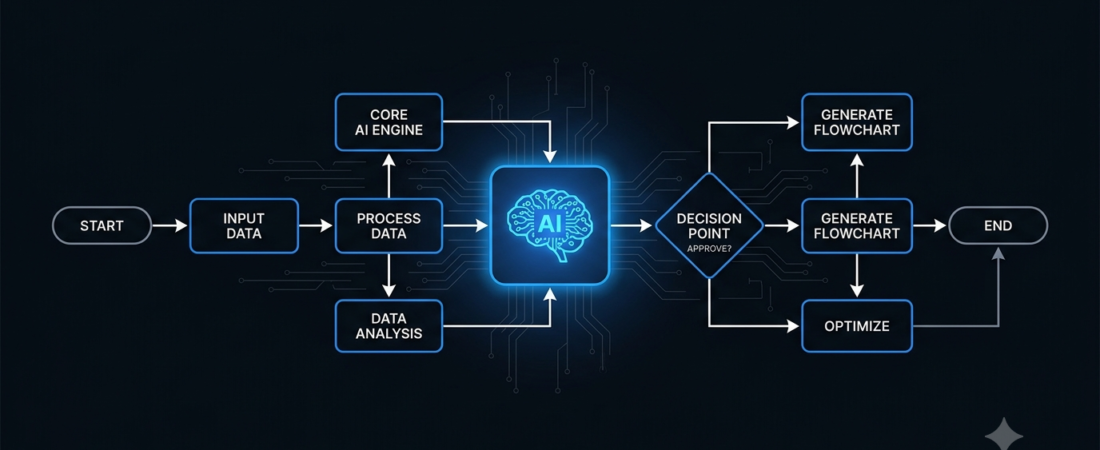
An AI flowchart generator converts a text prompt, process description, or other input into a visual representation of steps and decisions. Depending on the tool, you may also be able to edit the diagram, collaborate with teammates, and export the finished result.
For example, you could enter:
“Create a flowchart showing how an online store receives an order, checks payment, prepares the package, ships it, and sends a delivery confirmation.”
The tool can generate a starting structure. You should still review the sequence, decision points, and labels before using the diagram in real work.
Best AI Flowchart Generators at a Glance
| Tool | Best For | Main Strength |
|---|---|---|
| Lucidchart | Professional diagrams | AI-assisted flowcharts and business visuals |
| Miro | Team collaboration | Prompt-based diagrams on a shared canvas |
| Napkin AI | Quick visual explanations | Turning written content into flowcharts |
| Creately | Process mapping | Expanding and refining workflows |
| Canva | Simple, polished visuals | Easy online design and flowchart creation |
| Whimsical | Clean diagrams and wireframes | Visualizing ideas and product flows |
Note: AI features, free usage limits, and export options may vary by plan. Check each official website before choosing a subscription.
1. Lucidchart — Best for Professional Flowcharts
Official website: https://lucid.co/diagram/flowchart/ai-flowchart-generator
Lucidchart is a diagramming tool designed for people who need to explain processes, systems, and relationships clearly. Its Lucid AI features can generate flowcharts from text descriptions and help users refine diagrams.
Key features
- Generate flowcharts from written prompts.
- Refine and organize AI-generated diagrams.
- Work with templates for different diagram types.
- Collaborate with colleagues on visual documents.
Best for
Business analysts, project managers, developers, and teams documenting processes.
Limitation
A generated diagram is only a first draft. Complex workflows may need manual corrections, and access to particular features can depend on the plan.
Verdict: Consider Lucidchart when accuracy, structured diagrams, and professional documentation matter.
2. Miro — Best for Team Collaboration
Official website: https://miro.com/ai/flowchart-ai/
Miro combines an online collaborative canvas with AI-assisted diagram creation. You can describe a process and generate a flowchart, then edit the result with your team.
For example, a product team could map a customer journey, review an onboarding process, or document the steps involved in launching a new feature.
Key features
- Create flowcharts from text prompts.
- Edit and refine generated diagrams.
- Collaborate on a shared canvas.
- Connect diagrams with broader brainstorming and project-planning work.
Best for
Remote teams, product managers, startups, and group projects.
Limitation
Teams should review available AI credits, plan restrictions, and collaboration needs before relying on it for regular work.
Verdict: Miro is worth exploring if you want your diagrams to be part of a collaborative workspace rather than isolated files.
3. Napkin AI — Best for Turning Text Into Visuals
Official website: https://www.napkin.ai/flowcharts/
Napkin AI focuses on converting written information into visual content. You can start with notes, a process description, or a prompt and turn it into a flowchart. Its workflow also supports restyling and exporting visuals in supported formats.
This can be useful when you understand a process but struggle to explain it clearly with a blank canvas.
Key features
- Convert written content into flowcharts.
- Generate visual representations of processes.
- Restyle diagrams to suit your content.
- Export visuals in supported formats such as PNG, PDF, PPT, or SVG.
Best for
Bloggers, educators, students, presentation creators, and people preparing visual explanations.
Limitation
Review the output carefully, especially when the original text contains conditions, exceptions, or several possible outcomes.
Verdict: Try Napkin AI when you want to explain written information visually without spending too much time drawing from scratch.
4. Creately — Best for Process Mapping
Official website: https://creately.com/lp/viz/ai-flowchart/
Creately provides diagramming and visual collaboration features, including AI-assisted flowchart generation. It can help users create process maps, user flows, and other diagrams from written descriptions.
It is particularly relevant when you need to show how a task moves from one stage to another.
Key features
- Generate flowcharts using prompts.
- Expand and refine parts of a diagram.
- Create process maps and user flows.
- Collaborate and export diagrams in supported formats.
Best for
Operations teams, project planners, business process documentation, and structured workflows.
Limitation
Creately states that its AI flowchart features are available on paid plans, so check current plan details before committing.
Verdict: Consider Creately if process mapping is a regular part of your work.
5. Canva — Best for Simple, Polished Visuals
Official website: https://www.canva.com/online-whiteboard/flowcharts/
Canva is known for accessible online design tools. Its flowchart maker can help you create diagrams for reports, presentations, educational materials, and online content.
Unlike a dedicated process-mapping tool, Canva is especially useful when the final diagram needs to look polished and fit into a broader design.
Key features
- Create flowcharts online.
- Use shapes, connectors, and design elements.
- Prepare diagrams for presentations and reports.
- Build visuals that match a wider design style.
Best for
Students, teachers, content creators, and small businesses preparing simple diagrams.
Limitation
Canva’s flowchart maker should not be confused with unlimited access to every AI feature. Check the current product and plan details for the specific capability you need.
Verdict: Choose Canva when presentation quality and ease of design are more important than complex process modelling.
6. Whimsical — Best for Clean Product Flows and Wireframes
Official website: https://whimsical.com/
Whimsical is a visual workspace for creating diagrams, flowcharts, mind maps, and wireframes. It is useful when you want to communicate an idea without making the diagram overly complicated.
For example, a website designer could map the path from a homepage to a product page, checkout, and confirmation screen.
Key features
- Create clean flowcharts and visual diagrams.
- Organize product and website user flows.
- Work with wireframes and mind maps in one visual workspace.
- Share visual ideas with teammates.
Best for
Product designers, website planners, startup teams, and people mapping user journeys.
Limitation
Check the current AI features, usage allowances, and export options to make sure they match your workflow.
Verdict: Whimsical is worth considering when simplicity and clear visual communication are your priorities.
How to Choose the Best AI Flowchart Generator
Before choosing a tool, identify the kind of diagram you need to create.
1. For business processes
Look at Lucidchart or Creately. They are suitable starting points for documenting steps, responsibilities, and process decisions.
2. For team brainstorming
Miro is a useful option when several people need to review and improve a diagram together.
3. For turning notes into visuals
Napkin AI is worth trying when your starting point is written content rather than an existing diagram.
4. For presentations and educational content
Canva can help you prepare a visually consistent diagram for a report, lesson, or slide deck.
5. For website and product planning
Whimsical is a practical option for user flows and early-stage product ideas.
If you are exploring other AI software, you may also find our guides to AI productivity tools and AI tools for small business useful.
How to Create a Better AI Flowchart
The quality of your output depends partly on how clearly you describe the process.
Step 1: Define the goal. Explain what the diagram should help someone understand.
Step 2: List the steps in order. Include the starting point, key actions, decision points, and final outcome.
Step 3: Specify the audience. A flowchart for beginners may need simpler labels than one for a technical team.
Step 4: Generate and review. Check whether any steps are missing, duplicated, or in the wrong order.
Step 5: Refine the design. Use clear labels, consistent shapes, and arrows that are easy to follow.
For technical workflows, developers may also want to explore our guide to AI coding tools. For businesses planning more complex processes, our guide to AI automation tools is another useful resource.
Frequently Asked Questions
What is the best AI flowchart generator?
There is no single best option for everyone. Lucidchart and Creately are worth considering for structured process diagrams, Miro for collaboration, and Napkin AI for turning text into visuals.
Are AI flowchart generators free?
Some tools offer free access to basic diagramming, while certain AI features or higher usage limits may require a paid plan. Check the current official pricing and feature pages before signing up.
Can AI create a flowchart from text?
Yes. Tools such as Lucidchart, Miro, Napkin AI, and Creately describe workflows for generating diagrams from prompts or written content. You should review the result before using it.
Can students use AI flowchart tools?
Yes. Students can use flowcharts to organize revision steps, explain concepts, and visualize processes. Always check your institution’s rules about AI assistance and complete your own understanding of the material.
Are AI-generated flowcharts always accurate?
No. AI can misunderstand instructions or omit important branches. Verify the logic, labels, sequence, and exceptions before using a diagram for decisions or technical documentation.
Final Verdict
The best AI flowchart generator depends on your purpose. Choose Lucidchart for structured professional diagrams, Miro for team collaboration, Napkin AI for text-to-visual workflows, Creately for process mapping, Canva for presentation-ready visuals, or Whimsical for clean product flows.
Start with one real task and test whether the tool produces a diagram you can understand and edit. Compare its output, limitations, and total cost before paying for a plan.
At Aiventa Guide, our goal is to help you compare AI tools practically so you can choose software that fits your needs—not just follow the latest trend.