Best Website Accessibility Testing Tools for Better Websites
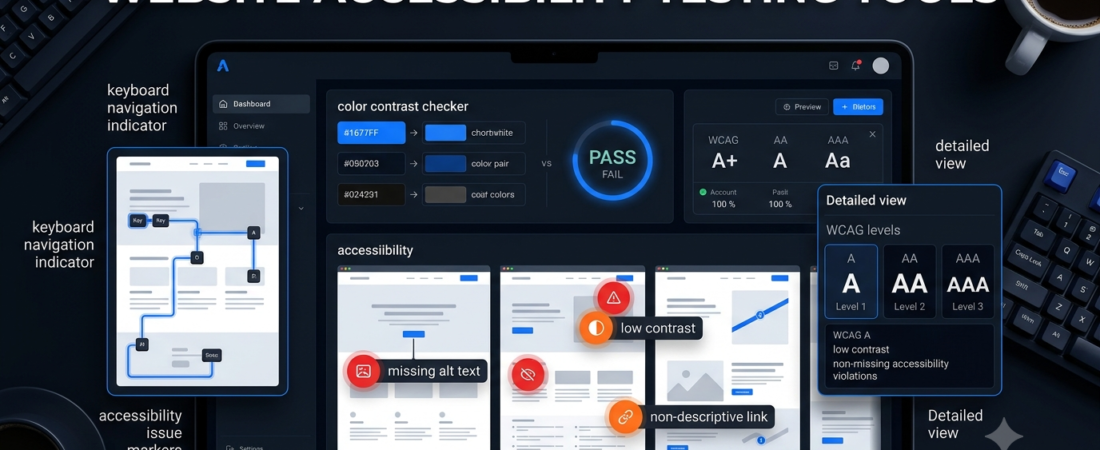
Website accessibility testing tools help website owners and developers identify barriers that can make a website difficult to use for people with disabilities. These barriers can include missing image descriptions, poor color contrast, unlabeled form fields, and navigation problems.
A website may look attractive on a desktop screen but still be difficult to navigate using a keyboard or screen reader. Therefore, accessibility testing is an important part of building a more inclusive website.
The good news is that you do not always need expensive software to begin. Several free browser tools can identify common accessibility problems and suggest areas to investigate.
In this guide, we compare five website accessibility testing tools, explain their main features, and help you decide which one fits your website.
What Are Website Accessibility Testing Tools?
Website accessibility testing tools examine web pages for issues that may prevent people from accessing content or using website features.
Many tools check pages against accessibility rules such as the Web Content Accessibility Guidelines (WCAG). Depending on the product, they can inspect page structure, color contrast, accessible names, keyboard navigation, and other technical issues.
Common problems include:
- Images without appropriate alternative text.
- Text that has insufficient color contrast.
- Buttons or links without meaningful accessible names.
- Form fields without proper labels.
- Incorrect heading structure.
- Keyboard navigation problems.
- Interface elements that are difficult for assistive technologies to interpret.
Automated tools can detect many common issues, but they cannot identify every accessibility barrier. Manual testing is also necessary to understand how people experience a website.
5 Best Website Accessibility Testing Tools
1. WAVE — Best for Beginners
Best for: Bloggers, website owners, students, and beginners.
WAVE is a web accessibility evaluation tool developed by WebAIM. It displays accessibility errors, alerts, and structural information directly on a page, helping users understand where potential problems occur.
You can enter a public page URL into the online checker or use a browser extension to evaluate a page in your browser.
Key features:
- Visual identification of accessibility issues.
- Checks for many common WCAG-related problems.
- Page structure and heading inspection.
- Browser extensions for Chrome, Firefox, and Edge.
- Options for testing dynamic or password-protected pages through its browser extension.
Pros:
- Easy to understand for beginners.
- Offers a free way to start testing.
- Helps users see issues in the context of the page.
Cons:
- Automated results do not replace manual evaluation.
- Testing one page does not automatically mean every page on a website has been checked.
Verdict: WAVE is a strong starting point if you want to inspect a webpage without setting up a complex testing workflow.
Website: https://wave.webaim.org/
2. axe DevTools — Best for Developers
Best for: Web developers, QA testers, and development teams.
axe DevTools is an accessibility testing solution from Deque. Its tools help developers identify accessibility issues during development and testing, with options for browser-based checks and more advanced workflows.
Depending on the product and plan, developers can access detailed findings, guidance for fixing problems, and integration with development processes.
Key features:
- Automated accessibility checks.
- Detailed issue reports and remediation guidance.
- Browser-based testing.
- Options for integrating checks into development workflows.
- Additional guided testing capabilities in supported products.
Pros:
- Useful for finding technical accessibility issues.
- Supports developers working on complex web applications.
- Can help teams identify issues earlier in development.
Cons:
- Some advanced features require a paid plan.
- Technical findings may require development experience to fix.
Verdict: Consider axe DevTools if you build websites professionally or need accessibility checks integrated into a development workflow.
Website: https://www.deque.com/axe/devtools/
3. Google Lighthouse — Best for Quick Website Audits
Best for: Website owners, developers, and performance-focused teams.
Google Lighthouse is an auditing tool available through Chrome DevTools and other supported workflows. It evaluates web pages across several areas, including accessibility, performance, best practices, and SEO.
Its accessibility audit can help identify common issues on a page. This makes it useful when you want to review accessibility alongside other website quality factors.
Key features:
- Accessibility audits.
- Performance and SEO-related audits.
- Reports with detected issues.
- Testing through Chrome DevTools.
- Repeatable audits for development and optimization work.
Pros:
- Convenient for quick page checks.
- Combines several types of website audits.
- Useful for developers and website owners.
Cons:
- A high score does not prove complete accessibility.
- Some problems require manual testing or specialist tools.
Verdict: Lighthouse is a practical first check if you want to evaluate accessibility and website performance in the same workflow.
Website: https://developer.chrome.com/docs/lighthouse/overview/
4. Accessibility Insights for Web — Best for Guided Testing
Best for: Developers and testers who want structured instructions.
Accessibility Insights for Web is a browser extension for Chrome and Microsoft Edge. It provides guided ways to identify accessibility issues, including a quick testing workflow and a more detailed assessment process.
Its FastPass workflow combines automated checks with guided keyboard testing. This helps users investigate problems that a purely automated scan might not fully explain.
Key features:
- Automated accessibility checks.
- Guided keyboard testing.
- FastPass workflow for common, high-impact issues.
- More detailed accessibility assessment.
- Browser-based testing.
Pros:
- Provides a structured approach to testing.
- Helps users investigate keyboard accessibility.
- Useful for learning practical accessibility testing methods.
Cons:
- A full assessment takes more time than a quick scan.
- Some checks require the tester to make judgments rather than rely on automation.
Verdict: Choose Accessibility Insights if you want more guidance than a basic automated checker provides.
Website: https://accessibilityinsights.io/
5. Pa11y — Best for Automated Testing Workflows
Best for: Developers and teams that want repeatable accessibility checks.
Pa11y is an open-source collection of accessibility testing tools. It includes a command-line testing tool, CI-focused testing, and dashboard-related projects for monitoring results over time.
Unlike a simple browser checker, Pa11y can fit into automated workflows. For example, a development team can test pages as part of its software release process.
Key features:
- Command-line accessibility testing.
- Automated testing across multiple pages.
- Integration options for development workflows.
- Reports in supported formats.
- Dashboard tools for tracking results over time.
Pros:
- Free and open source.
- Useful for repeatable testing.
- Suitable for technical teams and automated workflows.
Cons:
- Requires more technical knowledge than beginner-focused tools.
- Initial setup may take time.
Verdict: Pa11y is worth considering when you want to run accessibility tests repeatedly rather than inspect every page manually.
Website: https://pa11y.org/
Website Accessibility Testing Tools Compared
| Tool | Best for | Starting point |
|---|---|---|
| WAVE | Beginners and bloggers | Free online checker |
| axe DevTools | Developers and QA teams | Browser extension |
| Google Lighthouse | Quick page audits | Chrome DevTools |
| Accessibility Insights | Guided testing | Browser extension |
| Pa11y | Automated workflows | Open-source tools |
This comparison focuses on typical use cases, not a controlled accuracy benchmark. Features and licensing can change, so check each provider’s current documentation before choosing a tool.
How to Choose the Right Accessibility Testing Tool
1. Consider Your Technical Experience
If you are a beginner, start with WAVE or Lighthouse. Both offer a straightforward way to inspect a page and identify common problems.
Developers who need more detailed findings can explore axe DevTools or Accessibility Insights. If you are comfortable with command-line tools, Pa11y may fit your workflow.
2. Decide Whether You Need Single-Page or Site-Wide Testing
Testing your homepage is useful, but it does not tell you whether every article, form, product page, or navigation menu is accessible.
For a larger website, create a list of important page types and test representative pages. If your site changes frequently, consider a repeatable testing workflow.
3. Look Beyond Accessibility Scores
A score can be a helpful summary, but it does not tell the whole story. Review the actual findings and prioritize problems that prevent people from understanding content or completing important actions.
4. Include Keyboard and Screen Reader Testing
Automated checkers cannot reliably evaluate every real-world interaction. Test whether you can navigate the page using a keyboard and whether important content and controls make sense when using assistive technology.
5. Check Your Website’s Other Quality Factors
Accessibility is one part of website quality. You should also review page speed, mobile usability, content clarity, and search optimization.
For additional website improvement ideas, explore our guides to how to choose AI tools and AI productivity tools.
How to Run a Basic Website Accessibility Audit
Follow this simple process to get started.
- Choose an important page. Begin with your homepage, a popular article, or a page containing a form.
- Run an automated check. Use WAVE, Lighthouse, or another suitable tool.
- Review the findings. Identify missing labels, contrast problems, structural issues, and other reported barriers.
- Fix high-impact issues first. Make sure important navigation, buttons, forms, and content are usable.
- Test keyboard navigation. Use the Tab, Shift+Tab, Enter, and arrow keys where appropriate to explore the interface.
- Check the page again. Rerun the tool after making changes and confirm that the fixes work as intended.
- Repeat across page types. Check other important templates and interactive elements rather than relying on one successful scan.
Keep a record of the issues you find and the changes you make. This will help you track progress as your website evolves.
Frequently Asked Questions
What is the best free website accessibility testing tool?
WAVE is a good starting point for beginners. Google Lighthouse is also useful for quick accessibility audits, while Pa11y offers open-source options for technical testing workflows.
Can accessibility testing tools fix problems automatically?
Some products offer suggestions or assisted remediation features, but you should review changes carefully. Incorrect fixes can create new problems or change how a page behaves.
Do accessibility tools guarantee WCAG compliance?
No. Automated checks identify many common issues, but they cannot verify every accessibility requirement. Manual testing and, where appropriate, professional evaluation may also be needed.
How often should I test my website?
Test after major design changes, new features, theme updates, or significant content changes. For frequently updated websites, regular automated checks can help identify regressions.
Is website accessibility important for bloggers?
Yes. Accessible headings, meaningful image descriptions, readable contrast, and usable navigation can make articles easier for more people to use. Bloggers should check both individual posts and shared website templates.
Conclusion
The best website accessibility testing tools depend on your experience and the kind of website you manage. WAVE is a useful starting point for beginners, Lighthouse helps with quick audits, axe DevTools and Accessibility Insights offer more detailed testing workflows, and Pa11y supports automation.
Start with a few important pages, fix the issues you discover, and test again. Most importantly, combine automated checks with real keyboard and assistive-technology testing.
Explore Aiventa Guide for more practical software comparisons and website improvement guides.